The newest addition to the family of sophisticated data recovery technologies developed by DiskInternals allows recovering data from BitLocker-encrypted NTFS partitions created in Windows 7 and Vista. Currently available in DiskInternals EFS Recovery, the new technology will be gradually embedded into DiskInternals’ other recovery products.
And you have to know at least 42 of the 48 digits of the BitLocker Recovery Key. Happy experimenting! # The PowerShell Script tries to determine the recovery key by brute-forcing an unlock # of a BitLockered drive. This script only works if you’re missing one of the 6-digit # groups of numbers in the recovery key. Hi, I enabled BitLocker on some computers with Windows Ultimate 7. These computers don't have TPM, so I had to make changes to GPEDIT to. Mar 28, 2019 The BitLocker recovery key is a 32-digit number stored in your computer. Here’s how to find your recovery key. Places to look for your BitLocker recovery key.
Background: What Is BitLocker?
Essentially, BitLocker is just a name used by Microsoft to describe an algorithm employed in Windows Vista and Windows 7 to encrypt disk volumes sector by sector. BitLocker is something else than setting security permissions on files and folders and is different from EFS (Encrypted File System) used for encrypting files and folders from the Security tab in Windows Explorer.
Unlike other access restriction and content-encryption methods employed in Microsoft's latest operating systems, BitLocker deals with entire disk volumes. The algorithm of Microsoft BitLocker Recovery uses low-level, sector-by-sector encryption to protect the entire partition, disk, or disk volume.
Two versions of BitLocker exist. The first version, BitLocker 1.0, is used in Windows Vista. This version of BitLocker has certain limitations on which volumes can be encrypted.
For Windows 7 Bitlocker Recovery is a key to restoring Encrypted NTFS Volumes. Windows 7 uses Recovery 2.0. The second version of BitLocker is much easier to use, lifting most limitations of the first edition. Apparently, Windows Vista PCs won’t be able to natively access volumes using BitLocker 2.0 encryption. DiskInternals works around these limitations, making such access easily possible - providing that you know the original password or volume recovery key.
Finally, there’s a BitLocker To Go. Introduced in Windows 7, BitLocker To Go encrypts removable volumes and supports the new exFAT file system.
Practical uses for Bitlocker
There are situations when you lose your laptop, or it’s been stolen, or you want to dispose of your computer, but at the same time, you worry about the confidentiality of your data. It is for this purpose that BitLocker was created. It protects all computer data and prevents unauthorized access to it.
You can manage BitLocker using several tools:
- BitLocker Password Viewer. All recorded recovery passwords are stored here and, if necessary, you can see them; for example, for data recovery. Naturally, this viewing is possible only when you are the administrator of this computer and have all the permissions and privileges for this device.
- Various BitLocker drive encryption tools. These can be manage-bde, the command line, repair-bde, and BitLocker cmdlets. Using these tools, you can create all kinds of scenarios and perform tasks in case of emergency data recovery (i.e., when standard recovery is impossible).
About BitLocker recovery
As it was said above, BitLocker is the technology that lets you encrypt your hard drive.
At the same time, if you cannot access your BitLocker-encrypted disk, you need to begin recovery right away. It is possible to get access to the disk with a BitLocker recovery password.
But if you forget or can not find the password, this can be a problem for you and restoring BitLocker is the only chance you have to get access to the disk. Otherwise, you will need to reinstall the operating system (and that’s equal to data erasure).
So here’s what you need to know about BitLocker recovery. This is a process that allows you to access an inaccessible drive that is protected with BitLocker. Recovery is important if unlocking the drive in the usual way does not work.
Storage options for the BitLocker recovery key
There are several ways to store recovery keys:
- Quite often, the BitLocker recovery key is stored on a USB drive. In this case, the key can be simply transferred to the computer with a locked disk and you can use the Wizard to restore it.
- Also, the BitLocker recovery key can be stored in a Microsoft or Azure Active Directory account. In order to access the key, you need to log in to the appropriate account and go to the “BitLocker recovery keys” tab.
- The BitLocker recovery key can simply be printed and stored in a safe place on demand.
- The BitLocker recovery key can also be saved as a file and stored in a safe place.
Recovering BitLocker Volumes: Recovery Keys
DiskInternals can recover files and folders from damaged volumes using BitLocker encryption. However, one important pre-requisite must be met. You have to supply the original encryption password or volume Recovery Key generated by BitLocker at the time the protected volume was created.
DiskInternals does not, and will not break into protected volumes if the original password or volume recovery key is unknown. This is as much of a policy issue as it is a technological limitation. BitLocker protection is strong enough to sustain many years of brute-force attacks.
The password part is simple; if access to your BitLocker volume was protected with a password, simply enter that password into DiskInternals EFS Recovery when prompted, and the recovery will go on seamlessly.
Bitlocker Recovery Keys are something else. These keys are returned by BitLocker at the time the encrypted volume is created and if hardware Trusted Platform Module keys, USB keys or combinations of thereof are employed for transparent encryption. You can save the key as a text file on the USB flash drive and use a different computer to read the text file. A proper BitLocker Recovery Key may look like this:
If you used a USB key to unlock your BitLocker volume, the Recovery Key (in the format shown above) is stored in a .BEK file with a name that looks like this:
Either way, you’ll need a volume Recovery Key to recover information from your BitLocker encrypted volume.
The Easy Part: use EFS Recovery to restore BitLocker files
DiskInternals EFS Recovery is a professional software tool that can easily recover data from locked volumes using BitLocker encryption. You just need to enter the key, and then it will automatically scan. After this, select the necessary files for recovery, which will then also happen automatically.
This software works with the following file systems: BitLocker, EFS, FAT12, FAT16, FAT32, NTFS5, and NTFS.
A free trial version of the program is always available, as well as a free preview function before recovery.
Use the following detailed guide to restore BitLocker files using DiskInternals EFS Recovery.
Step 1. Download and install DiskInternals EFS Recovery.
Step 2. Run the application and scan the disk where the key is located (For EFS, you should choose the disk where Windows encrypted the data; for BitLocker, choose the disk with the BitLocker). Then a new window will appear asking you to enter the key. If there is no such request, then the master key has not been restored.
Step 3. Then select the disk to Decrypt.
Step 4. Select the recovery method: fast or full. Wait for the process to complete. The quick method searches existing and deleted files and takes several minutes. The full method also restores partition structures and searches for signatures. This method will take much longer, but it is preferable if you have a reformatted or damaged disk.
Step 5. Preview. Right-click on the file and select “Preview in a new window”. If the decryption was successful, then you will be able to preview the files.
Step 6. Saving. Buy a license for this product and enter the license key in the appropriate window.
You can save data at any place convenient for you.
Let's make a summary: to recover files and folders from the encrypted drive, launch EFS Recovery and enter your volume Recovery Key. If the key matches, the product will automatically scan the BitLocker volume to locate any recoverable files and folders, detecting and fixing file system errors if that option is selected. Everything happens completely automatically; all you need to do is selecting which files to recover.
*DiskInternals EFS Recovery overcomes limitations of older versions of Windows being unable to natively access BitLocker volumes. You can run DiskInternals EFS Recovery on Windows 10, Windows 2000, XP, 2003 Server, Vista, Windows 7 or 2008 Server, and it will still be able to successfully recover BitLocker 1.0 and 2.0 volumes completely automatically.
DOWNLOADBUY NOW
- BitLocker
- What Is BitLocker
- Bitlocker Recovery Keys
- The Easy Part
- EFS Recovery
- DownloadBuy
RAID Array Data Recovery - make your RAID arrays alive
VMFS tools - repair your data from VMFS, VMDK, ESX(i), vSphere disks
Recover a Partition - an expert at recovering lost partitions
VMFS Recovery™RAID Recovery™Partition RecoveryUneraser™NTFS RecoveryEFS Recovery™DVR RecoveryFree Bitlocker Recovery Key Generator Free
Linux ReaderReader for TCZIP RepairAddress Book RecoveryI recently encrypted my portable USB hard drive with BitLocker. After encrypting it and locking it with a password, I did not use that drive for a while. When I attached that hard drive with my PC today, I realized that I did not remember the BitLocker password.
Free Bitlocker Recovery Key Generator Key
I tried a couple of passwords I thought I could have used, but with no luck. I had plenty of important data on that hard drive and I kind of freaked out.
Suddenly I realized that I had saved a BitLocker recovery key to my Microsoft account when Windows asked me to back it up. Now the question was, how to find that BitLocker recovery key from Microsoft account? Well, it’s pretty simple. If you’re in the same situation as me, then follow this tutorial on recovering Bitlocker key.
Related: Looking for a new external hard drive? Have a look at the best deals and grab one at discounted rates.
Note: You must have saved your BitLocker recovery key to your Microsoft Account manually. Windows does not store any recovery information by itself.
How to Find BitLocker Recovery Key
Step 1
Go to https://onedrive.live.com/recoverykey and log in with the same Microsoft account credentials you use to log into your Windows 8/8.1 or Windows 10 PC.
Step 2
If the PC is not your trusted PC, the page will ask you to authenticate your login by entering a pin code sent to your email or by any other way you may have set (Using Google’s Authenticator app, for example).
Step 3
After you successfully login and authenticate yourself, you will see recovery keys displayed on the screen. If you have saved BitLocker recovery key for more than one devices, you will have to identify the correct recovery key for the device you are trying to recover. It could be your internal hard drive partition for example. In my case, it was my USB hard drive.
To identify the recovery key, you have to match Key ID. To get your device’s Key ID, click More Options on ‘Enter password to unlock this drive’ screen. Click ‘Enter recovery key.’ Windows will now display the Key ID.
Step 4
Once you match Key ID with available keys on your Microsoft account, copy the 48-digit recovery key and enter it in the window asking for it. That’s it, you have unlocked your device.
How to Reset BitLocker Password
Now you will want to reset your BitLocker password because you have forgotten it. To do so, right click on the device or the partition, click ‘Manage BitLocker,’ and select change password. Now Click reset a forgotten password. By selecting reset a forgotten password, you will not have to enter the old password (which you don’t remember). Enter the new password twice and click Finish to save changes.
That’s it. You have now recovered your device or partition using recovery key saved on your Microsoft account and you have changed the password too. Remember to remember the new password now!
One thing to keep in mind here is that you have to make sure you always use a strong password with your BitLocker device as well as your Microsoft account. Because as you followed in this tutorial, if anyone gains access to your Microsoft account, your recovery information can be easily accessed.
How to Make BitLocker Encryption Strong?
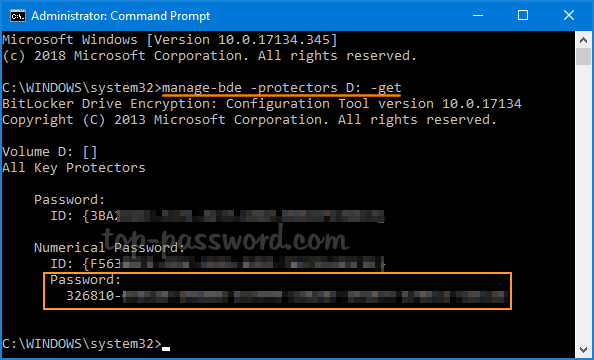
To make your BitLocker encryption even stronger, never save recovery information locally. Windows saves BitLocker recovery key in a simple text file when you choose to save the recovery key as a file.
Also, be careful when you choose to print the recovery key on a paper as anyone can have access to that piece of paper. If you ever need to print it, make sure you shred it after use.
If you choose to save your recovery information using third-party password managers such as 1Password, make sure you have a strong password for that application, too.
The best way to use BitLocker is to have a strong password which has a combination of lower and upper case alphabets, numbers and special characters. You should never use a simple password or a password that can be easily guessed.
That’s it, folks. I hope you found this tutorial helpful and I’d like to thank you for reading.